Smooth Isn't Just About FPS: The Frame Time Problem That's Ruining Your Gaming Experience
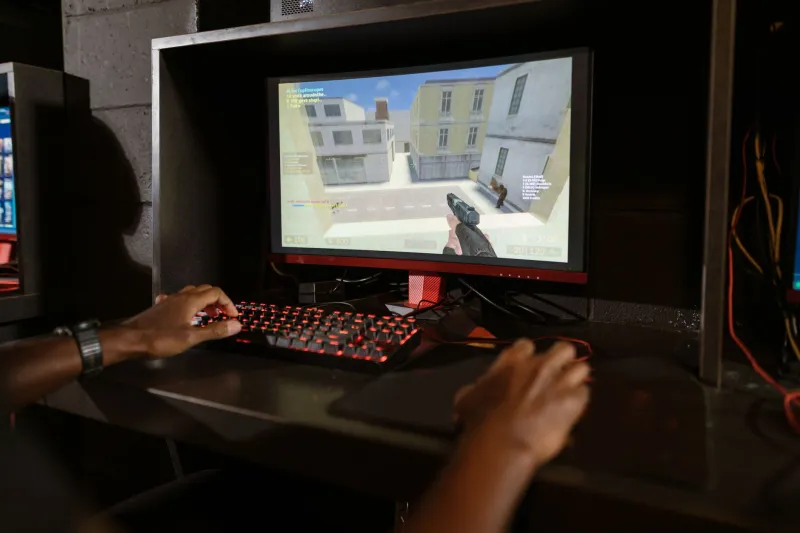
You've probably been there. You're running a game, the FPS counter in the corner reads a healthy 75 or 80, and yet something feels off. The camera stutters. Movement feels inconsistent. You're missing shots you should be hitting. You bump up to ultra settings, drop to 60 FPS, and somehow — impossibly — it actually feels smoother.
Welcome to the frame time rabbit hole. It's one of the most overlooked concepts in PC gaming, and once you understand it, you'll never look at an FPS counter the same way again.
What Even Is Frame Time?
Frame rate — your FPS number — measures how many frames your GPU pushes out per second. Frame time measures how long it takes to render each individual frame, expressed in milliseconds (ms).
Here's the math that matters: at a locked 60 FPS, every single frame should take exactly 16.67ms to render. At 120 FPS, each frame should take 8.33ms. These intervals need to be consistent. When they're not, you get what's called a frame time spike — one frame that takes 50ms to render instead of 16ms — and your brain registers that as a stutter, even if your average FPS looks perfectly fine.
So you could be averaging 90 FPS over a 10-second window, but if three or four of those frames took 80ms each, the gameplay experience is going to feel choppy and unresponsive. The average looks great on paper. The actual experience? Rough.
Why Your Eyes Can Spot This Before Your Brain Processes It
Human vision is weirdly good at detecting inconsistency. We're not great at measuring absolute speed, but we're exceptional at noticing changes in rhythm. It's the same reason a song with slightly off-beat percussion sounds wrong even to non-musicians.
Frame time spikes work the same way. A single 80ms frame in a sea of 16ms frames creates a visible hitch — a brief freeze that your brain immediately flags as wrong. Gamers often describe this as "micro-stutter" or say the game feels "laggy" even with good ping. In competitive titles like Valorant, Apex Legends, or Call of Duty, these spikes can genuinely affect your performance, not just your comfort level.
The Tools You Need (All Free)
The good news: you don't need to spend a dime to start monitoring frame time. Here are the three most useful options for PC gamers in the US right now.
CapFrameX is probably the most powerful free option available. It captures frame time data in real time, displays it as a graph, and lets you analyze spikes, 1% lows, and 0.1% lows — metrics that tell you far more about perceived smoothness than average FPS ever could. It also works seamlessly with most DirectX and Vulkan titles.
NVIDIA FrameView is another solid pick, especially if you're on Team Green. It's lightweight, runs in the background, and exports detailed logs you can review after a gaming session. Great for comparing performance across different driver versions or settings.
MSI Afterburner with RivaTuner Statistics Server (RTSS) has been a staple of the PC gaming community for years. While it's more commonly used for GPU monitoring, you can configure it to display frame time in-game. It's not as detailed as CapFrameX for analysis, but the real-time overlay is hard to beat for day-to-day use.
Games That Are Notorious Frame Time Offenders
Some titles have earned a reputation for frame time problems that go way beyond what their FPS numbers suggest.
The Last of Us Part I on PC had a famously disastrous launch in 2023, with widespread reports of stuttering even on high-end hardware. The frame time graphs looked like seismograph readings during an earthquake — massive spikes scattered throughout otherwise normal gameplay.
Hogwarts Legacy shipped with significant shader compilation stutter on PC, a problem that's become increasingly common in modern games. The first time you enter a new area or trigger a new effect, the CPU has to compile a shader on the fly, causing a noticeable hitch. Subsequent visits to the same area are smooth, but first-time traversal can feel terrible.
Forspoken, Callisto Protocol, and several other recent releases have had similar issues. It's becoming a pattern in the industry, and it's one reason why frame time monitoring has become more important than ever for PC gamers who want to know what they're actually getting.
How to Diagnose Your Own Stuttering Problem
If your game feels choppy but your FPS counter looks fine, here's a simple process to figure out what's going on.
Step one: Pull up CapFrameX and capture 60–90 seconds of gameplay in the area where stuttering feels worst. Look at the frame time graph. Are the spikes random, or do they happen at specific moments — like when entering new areas, during explosions, or when enemies spawn? Consistent, context-specific spikes often point to shader compilation or asset streaming issues.
Step two: Check your 1% and 0.1% low FPS numbers. These represent the worst-performing frames in your capture window. A game with an average of 90 FPS but 1% lows of 20 FPS is going to feel far worse than a game averaging 60 FPS with 1% lows of 55 FPS. The gap between your average and your lows is the real story.
Step three: Monitor your CPU and GPU usage simultaneously. If your GPU is sitting at 70% while your CPU is pegged at 100%, you've got a CPU bottleneck causing frame time inconsistency. This is common in open-world games and titles with heavy NPC simulation. The fix might be as simple as reducing CPU-heavy settings like draw distance or NPC density.
Step four: Check your RAM configuration. Running dual-channel memory (two sticks instead of one) and enabling XMP/EXPO in your BIOS can meaningfully reduce frame time variance in CPU-sensitive titles. It's a free performance improvement that's surprisingly underutilized.
Quick Fixes Worth Trying Right Now
Beyond diagnosis, a few tweaks tend to have an outsized impact on frame time consistency:
- Enable Resizable BAR (ReBAR) if your GPU and motherboard support it. It allows the CPU to access the full GPU memory, which can smooth out frame times in some titles.
- Cap your frame rate slightly below your GPU's maximum output using RTSS or your in-game limiter. A GPU running at 95% capacity has more headroom to handle sudden scene complexity without spiking.
- Keep your GPU drivers current, but don't reflexively install day-one driver updates for major game launches. Sometimes those early drivers introduce new frame time issues that get patched a few weeks later.
- Disable Windows Game Mode if you're experiencing random stutters. For some hardware configurations, it actually causes more problems than it solves.
The Bottom Line
FPS is a useful shorthand, but it's an incomplete picture of gaming performance. Frame time consistency is what your brain actually experiences when you're playing — it's the difference between a game that feels responsive and alive versus one that feels sluggish and frustrating, regardless of what the numbers say.
Spend 20 minutes setting up CapFrameX or FrameView, run a capture session in your most-played game, and see what your frame times actually look like. You might be surprised — and once you start optimizing for consistency instead of just chasing higher FPS numbers, the difference in how your games feel is genuinely hard to overstate.