Your GPU Is Running Way Too Hot — A $3 Tube of Thermal Paste Might Be All It Takes
You've cleaned your PC case fans. You've checked your cable management. You've even bumped up the fan curve in MSI Afterburner. And yet, your GPU is still hitting 85°C under load, your frame times are all over the place, and you're starting to wonder if your card is just dying. Before you panic-buy a replacement, here's something worth considering: the thermal paste that came with your graphics card from the factory might be doing almost nothing at this point.
This isn't a niche problem. It's actually one of the most overlooked performance and longevity issues in PC gaming, and the fix costs less than a fast food lunch.
Why Factory Thermal Solutions Are Often Mediocre
Manufacturers assemble GPUs and CPUs at serious scale, and thermal paste application is usually automated or done with minimal quality control. That means the compound is frequently over-applied, under-applied, or spread unevenly — sometimes all three at once. We've cracked open cards from major brands and found paste that looked like someone sneezed on the die, or conversely, barely a thin smear that left dry patches across half the surface.
Beyond initial application quality, thermal paste degrades over time. Most compounds start losing effectiveness after two to four years, depending on heat cycling and the type of compound used. If your GPU or CPU is more than three years old and has been running hot, there's a real chance the paste has dried out, cracked, or simply stopped making proper contact with the heatsink.
On top of that, many GPUs use thermal pads — soft, squishy squares of thermally conductive material — to bridge the gap between VRAM chips and the cooler backplate. These pads compress and harden over time, and when they stop conforming properly, memory temperatures spike. High VRAM temps don't just throttle performance; they can shorten the lifespan of your card.
What the Numbers Actually Look Like
We pulled the coolers on three GPUs — an RTX 3070 with about three years of heavy use, an RX 6700 XT that was two years old, and a GTX 1080 that had been running since 2017. Here's what we found after cleaning off the old compound and reapplying fresh paste.
RTX 3070: Stock temps under a 30-minute Furmark stress test peaked at 87°C. After reapplying Thermal Grizzly Kryonaut, that dropped to 73°C — a 14-degree improvement. Fan noise dropped noticeably since the card no longer needed to spin up as aggressively.
RX 6700 XT: This one surprised us. The original paste looked fine visually, but temps were hitting 82°C consistently. Post-reapplication with Arctic MX-6, we saw a steady 76°C max. Not as dramatic, but six degrees is nothing to dismiss when you're trying to keep a card alive through summer.
GTX 1080: This was the most dramatic case. The paste had fully dried and cracked. Idle temps were 52°C — absurdly high for a card just sitting on the desktop. After a fresh application of Noctua NT-H2, idle dropped to 38°C and load temps went from 91°C to 74°C. That's a 17-degree difference on a card that had basically been cooking itself for years.
Choosing the Right Thermal Compound
Not all thermal paste is equal, but you also don't need to spend $20 on some exotic liquid metal compound to get great results. Here's a quick breakdown of what actually works:
Arctic MX-6 (~$7 for 4g): Our top recommendation for most people. Non-conductive, easy to apply, performs excellently, and doesn't require a curing period. It's the safe choice that still delivers serious results.
Thermal Grizzly Kryonaut (~$10 for 1g): Slightly better peak performance than MX-6, especially on high-heat applications like modern GPUs. A bit pricier, but a tube lasts through multiple applications.
Noctua NT-H2 (~$8 for 3.5g): Excellent long-term stability. If you're the type who doesn't want to think about repasting for another five years, this one holds up well over time.
Liquid metal (Thermal Grizzly Conductonaut, etc.): Only for experienced users on CPUs. Liquid metal is electrically conductive, which means one slip near GPU components can fry your card permanently. Skip it unless you really know what you're doing.
How to Safely Repaste Your GPU
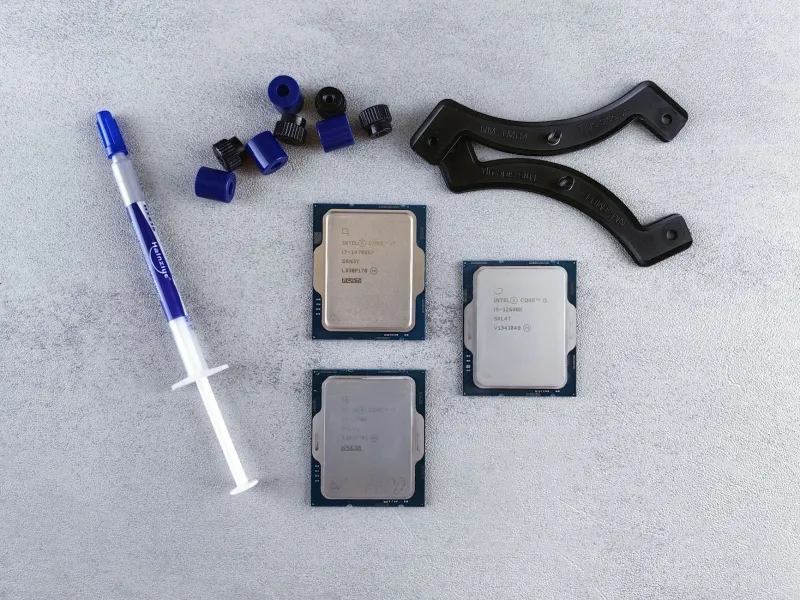
This process takes about 45 minutes if you're careful and patient. You'll need: your chosen thermal paste, isopropyl alcohol (90% or higher), lint-free cloths or coffee filters, a plastic spudger or guitar pick, and the right screwdrivers for your card (usually Phillips #1 and #0).
Step 1: Power down your PC completely and unplug it from the wall. Ground yourself by touching a metal part of the case, or use an anti-static wrist strap if you have one.
Step 2: Remove the GPU from your system. Lay it on a clean, flat surface.
Step 3: Unscrew the cooler shroud. Most GPUs have screws along the back of the PCB and sometimes along the fan shroud itself. Take photos as you go — you'll thank yourself later.
Step 4: Gently lift the cooler away from the PCB. If it feels stuck, don't force it — old paste can act like glue. Apply gentle, even pressure in a rocking motion.
Step 5: Clean the old paste off both the GPU die and the heatsink base using isopropyl alcohol and lint-free cloth. Be thorough. Any residue left behind will hurt thermal transfer.
Step 6: Check your thermal pads. If they're hard, cracked, or crumbling, replace them. Match the thickness of the originals — usually 1mm to 2mm. Arctic has a solid thermal pad kit for around $12 that covers most GPU configurations.
Step 7: Apply a small pea-sized dot of new paste to the center of the GPU die. Don't spread it manually — the pressure from reseating the cooler will do that for you.
Step 8: Reseat the cooler, screw it back down in a cross pattern to ensure even pressure, reassemble the shroud, and reinstall the card.
Step 9: Boot up and run a stress test. Monitor temps with GPU-Z or HWiNFO64 and compare to your previous numbers.
Is It Worth Doing on a Newer Card?
If your GPU is under warranty, repasting will almost certainly void it, so factor that in. For cards that are two years old or more and running hot, it's almost always worth doing. The cost is minimal, the process is reversible, and the performance gains — both in raw temps and in how quietly your system runs — are real and immediate.
Your GPU isn't necessarily dying. It might just be suffocating under a dried-out layer of paste that was applied by a machine in a hurry three years ago. A $3 to $10 tube of thermal compound and an afternoon of careful work can genuinely add years to your hardware's life. That's one of the best dollars-per-degree deals in all of PC gaming.