Windows Updates Are Hijacking Your Game Nights — Here's How to Fight Back

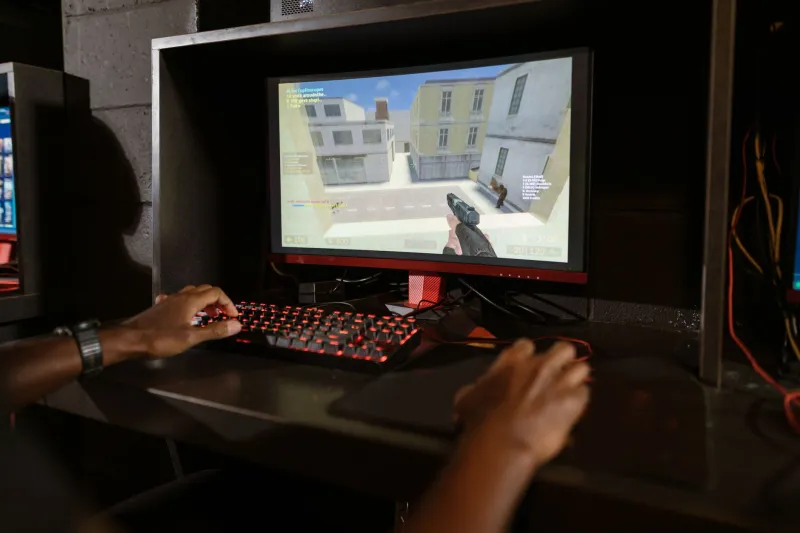
You're forty minutes into a ranked match. Your team is up, your ping is low, your hands are in the zone. Then your screen stutters. Your frame rate tanks. A little notification bubble creeps up from the taskbar like an uninvited houseguest, and suddenly Windows is rebooting itself to finish installing an update you never asked for.
If that scenario sounds familiar, you're not alone. Automatic Windows updates — especially driver updates pushed through Windows Update — have become one of the most frustrating pain points for PC gamers in the US. And the problem isn't just the interruption. Sometimes those updates actively break things that were working perfectly fine before.
Let's talk about why this happens, what you can actually do about it, and which updates deserve your attention versus which ones can sit in the waiting room for a while.
Why Windows Keeps Ambushing You Mid-Session
Microsoft's philosophy with Windows 10 and Windows 11 is pretty aggressive when it comes to updates. The company moved away from the old opt-in model years ago, and now the default behavior is to download and install updates automatically — often without asking, sometimes without warning.
Driver updates are a particularly spicy part of this equation. Windows Update doesn't just push OS patches; it also distributes GPU drivers, audio drivers, network adapter drivers, and more. The problem is that these aren't always the same versions your hardware manufacturer recommends. NVIDIA and AMD both release their own Game Ready and Adrenalin drivers specifically tuned for gaming workloads, and the versions that show up in Windows Update can lag behind by weeks or even months.
Worse, a driver that Windows installs automatically can overwrite a stable version you deliberately installed yourself. You go from a driver that runs your games perfectly to a generic Microsoft-certified build that introduces stuttering, crashes, or compatibility issues with specific titles — and you might not even realize what changed.
The Updates That Actually Matter for Gamers
Not all updates are created equal, and knowing the difference can save you a lot of headaches.
Security patches are the ones you genuinely don't want to skip for long. These close vulnerabilities that could let bad actors mess with your system. Even if you're not worried about it day-to-day, skipping security patches for months is how gaming rigs end up as part of botnets. Defer these, sure — but don't ghost them forever.
Cumulative updates are a mixed bag. They bundle bug fixes and stability improvements alongside security patches. Most of the time they're fine. Occasionally, one will tank performance on specific hardware configs, and you'll see Reddit threads blowing up about it within 48 hours of release. It's worth checking forums before installing a fresh cumulative update if you're on a tight hardware setup.
Driver updates via Windows Update are the ones most likely to cause you grief. These are the ones you want the most control over. Your GPU driver, in particular, should ideally come directly from NVIDIA's or AMD's own software — not from Windows Update.
Optional updates are almost always safe to ignore until you have a specific reason to install them. Windows won't force these on you without your input.
Step-by-Step: Taking Control Without Going Dark
Here's how to manage updates intelligently without turning your system into a security liability.
1. Set Active Hours — For Real This Time
Windows lets you define Active Hours, a window during which it won't restart your machine to finish installing updates. Go to Settings > Windows Update > Advanced Options > Active Hours and set this to cover your typical gaming window. If you game from 6 PM to midnight, set it accordingly. Windows 11 even lets you set a custom range of up to 18 hours.
This won't stop downloads from happening in the background, but it will stop the dreaded mid-session reboot.
2. Pause Updates When You Need a Stable Window
Both Windows 10 and 11 let you pause updates for up to five weeks. Go to Settings > Windows Update and hit Pause Updates. This is a great move before a big gaming weekend, a tournament, or any time you're on a build that's running perfectly and you don't want anything touching it. Just don't leave it paused indefinitely — come back and let the security patches through eventually.
3. Block Driver Updates Through Windows Update Specifically
This is the big one. You can stop Windows from automatically installing hardware drivers through Windows Update by doing the following:
- Open the Control Panel (yes, the old one — search for it)
- Go to System > Advanced System Settings > Hardware tab > Device Installation Settings
- Select No when asked if you want Windows to automatically download manufacturer apps and icons
This tells Windows to back off on driver installs. You'll still get OS updates, but your GPU, audio, and network drivers won't get quietly swapped out.
From there, install your GPU drivers manually from NVIDIA's or AMD's website. Set a reminder to check for updates every few weeks, or let GeForce Experience or AMD Software handle notifications — just don't let Windows be the one making the call.
4. Use the Show or Hide Updates Tool for Problem Patches
Microsoft offers a troubleshooter called wushowhide (you'll need to download it separately from Microsoft's support pages) that lets you hide specific updates so Windows stops trying to install them. If a particular driver update keeps reappearing and causing problems, this tool lets you block it specifically rather than pausing everything.
5. Consider Windows Update for Business Settings (It's Not Just for Offices)
If you're on Windows 11 Pro, you have access to Group Policy settings that give you more granular control over update timing. Specifically, you can defer feature updates and quality updates by a set number of days — giving the rest of the world time to find the bugs before they land on your rig. Search for gpedit.msc, navigate to Computer Configuration > Administrative Templates > Windows Components > Windows Update, and look at the deferral options.
The Mindset Shift That Makes This Manageable
Here's the honest take: you can't and shouldn't try to freeze Windows updates forever. Security patches exist for real reasons, and a gaming PC that's also connected to the internet needs some level of maintenance. The goal isn't to go completely dark — it's to be the one making decisions instead of letting Microsoft make them for you at the worst possible moment.
Think of it like car maintenance. You don't ignore oil changes, but you also don't let the mechanic show up in your driveway uninvited at 10 PM on a Friday night. Schedule it on your terms, know what's getting done and why, and you'll have a much smoother experience.
Set your Active Hours, block automatic driver installs, get your GPU drivers directly from the source, and check in on pending updates during downtime rather than letting Windows pick the moment. Do that, and the days of getting ambushed mid-match are mostly behind you.
Your game nights will thank you.