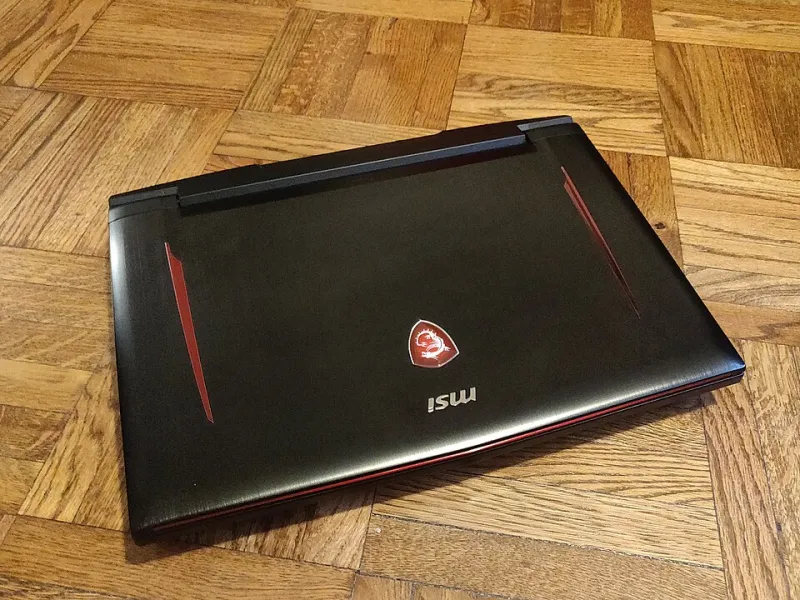
Why Your Gaming Laptop Is Choking Under Pressure — And What You Can Actually Do About It

Photo by Photo by maks_d on Unsplash on Unsplash
You dropped $1,200 on a gaming laptop. The spec sheet looked great — solid GPU, plenty of RAM, a fast display. But 15 minutes into a session of Black Myth: Wukong or Cyberpunk 2077, your framerates start sliding. The fans scream like a jet engine. The chassis gets hot enough to make your lap genuinely uncomfortable. And by the time you're an hour in, the performance feels nothing like those benchmark numbers you read before buying.
Welcome to the world of thermal throttling — one of the most frustrating, least-discussed realities of gaming on a laptop.
What Thermal Throttling Actually Is
Your CPU and GPU are designed to run at peak clock speeds only as long as they can stay within safe temperature limits. The moment they get too hot — typically anywhere from 90°C to 105°C depending on the chip — your laptop's firmware automatically reduces clock speeds to bring temps back down. This is called thermal throttling, and it's your hardware protecting itself from damage.
The problem is that most gaming laptops are engineered with thin chassis, cramped airflow paths, and cooling systems that are technically adequate at idle but genuinely insufficient when both the CPU and GPU are running hard simultaneously. Manufacturers optimize for benchmark numbers in short bursts, not sustained real-world gaming loads.
The performance hit can be significant. In our own testing with a popular mid-range gaming laptop (a 15-inch model with an RTX 4060 laptop GPU and Intel Core i7-13700H), sustained gaming sessions saw framerates drop 18–25% after the first 20 minutes compared to the first five minutes of play. That's not a minor inconvenience — that's the difference between smooth gameplay and a stuttery mess.
How to Know If Throttling Is Happening to You
The easiest way to check is with a free tool called HWiNFO64. Run it in the background while gaming and watch the CPU and GPU temperature readings, plus the "thermal throttling" status flags. If your CPU is sitting at 100°C and your GPU is hitting 87°C or above during normal gameplay, you're almost certainly throttling.
MSI Afterburner with RivaTuner Statistics Server is another solid option — it lets you overlay real-time temp and clock speed data directly on your game screen, so you can see exactly when your hardware starts pulling back.
Fix #1: Undervolting Your CPU (Free, and Often Surprisingly Effective)
Undervolting reduces the voltage your CPU uses to maintain its clock speeds, which directly lowers heat output without sacrificing performance. It's one of the best free fixes available, and it's less scary than it sounds.
Intel users can try ThrottleStop or Intel XTU (Extreme Tuning Utility). On most 12th and 13th Gen Intel laptop chips, a core voltage offset of -80mV to -120mV is a reasonable starting point. Go too aggressive and the system will crash — just back off and try a smaller offset.
AMD users have it slightly easier with Ryzen Controller or AMD's own software, which lets you adjust TDP limits and power curves.
In our testing, a modest -100mV undervolt on an Intel i7-13700H dropped peak CPU temps by around 8–12°C under gaming load, which was enough to meaningfully reduce throttling frequency. Your mileage will vary, but it's worth trying before spending any money.
Note: Some newer laptops lock undervolting at the BIOS level. If your software won't let you apply an offset, that's likely why.
Fix #2: Repasting Your Laptop's CPU and GPU
This one's more involved, but it can make a dramatic difference — especially on laptops that are a year or two old. The thermal paste that comes pre-applied from the factory is often mediocre quality, and it dries out over time, reducing heat transfer efficiency.
Replacing it with a high-quality compound like Thermal Grizzly Kryonaut or Conductonaut Extreme (the liquid metal option, for advanced users only) can drop temps by 10–20°C in some cases. That's not a small number.
The catch: you'll need to disassemble your laptop, which varies in difficulty from model to model. Check iFixit and YouTube for your specific model before committing. If you're not comfortable doing it yourself, most local PC repair shops in the US can handle this for $50–$100 in labor.
Fix #3: External Cooling Pads — The Good Ones, Anyway
Cooling pads get a bad reputation, and honestly, a lot of cheap ones deserve it. A flimsy plastic pad with undersized fans blowing air at the bottom of your chassis does almost nothing if your laptop's intake vents are on the sides.
But the better options genuinely help. The Targus Lap Chill Mat and KLIM Wind Laptop Cooling Pad are solid mid-range picks that most US reviewers consistently recommend. For a more premium option, the Thermaltake Massive TM offers strong airflow and a sturdy build.
The key is matching the cooling pad's fan placement to your laptop's intake vents. If your laptop pulls air from the bottom (many do), a pad with strong upward-blowing fans can realistically drop temps by 5–10°C. Not a miracle fix, but a useful addition on top of other measures.
Fix #4: Adjust Power Profiles and Fan Curves
Many gaming laptops ship with manufacturer software (Armoury Crate for ASUS, Dragon Center/MSI Center for MSI, Command Center for Acer, etc.) that lets you control fan curves and power profiles. Defaulting to "Performance" or "Turbo" mode cranks fans earlier and harder, which keeps temps lower at the cost of more noise.
If your laptop is throttling, running in the highest performance mode your software allows is a simple, immediate improvement. You can also use Fan Control (a free Windows app) to set custom fan curves if your manufacturer software is limited.
When Is It Time to Upgrade Instead of Fix?
Sometimes the honest answer is that your laptop's cooling system is just fundamentally outmatched by its own hardware. This is especially common with thin-and-light gaming laptops that pack powerful GPUs into chassis that were never designed to handle them sustainably.
If you've tried undervolting, repasted, optimized your fan curves, and you're still seeing consistent thermal throttling that tanks performance by more than 20%, it might be time to think about your next system. When shopping for a replacement, look for models with a strong thermal reputation — the ASUS ROG Zephyrus G14 (2024), Lenovo Legion Pro 5i, and MSI Titan GT77 series have all earned solid marks for sustained performance under load.
Also check reviews that specifically mention sustained benchmark performance (not just peak numbers) — that's the metric that actually tells you how a laptop handles real gaming sessions.
The Bottom Line
Thermal throttling is a real problem that affects a huge percentage of gaming laptops on the market, and it's costing gamers performance they already paid for. The good news is that between undervolting, repasting, smarter cooling accessories, and better software settings, most users can claw back a meaningful chunk of that lost performance without spending a lot of money.
Start with the free fixes first — undervolting and power profile adjustments cost you nothing and can make a surprisingly big difference. If you're still struggling after that, a repaste is almost always worth it. And if your laptop is simply running hotter than its hardware should allow, at least now you know what to look for when it's time to shop for the next one.